
Editing workflows
How to Make a Basketball Highlight Video: From Game Footage to Reel
Make a basketball highlight video from game footage: identify your player, review AI clips, keep complete plays and check the export. Includes a practice clip log.
To make a basketball highlight video, choose the player and audience, review the game for complete plays, trim each selection around the action, arrange a short first cut, then reopen the exported file. Start with one recording and one clear purpose. A social recap, a family keepsake and a coach’s evaluation video need different selections from the same game.
Decide who will watch the reel
Write the job of the video in one sentence: “Show our team’s fourth-quarter run to teammates” is a workable brief. A social edit can include celebrations and reactions. A coach may need full possessions, defensive reads and supporting game film. Follow the recipient’s instructions for an evaluation submission. Make separate versions when the audiences need different evidence, rather than trying to fit every purpose into one montage.
Put this into practice: Plan a coach-readable recruiting video.
Identify the player in the original recording
Keep the original game file. Note the game date, jersey color and number before you start selecting moments. Check that the viewer can locate the player before the key action. A clip with several similar uniforms may need a longer lead-in. If the camera misses a pass or the finish, inspect the surrounding footage instead of guessing what happened. For your next recording, frame enough of the court to keep the ball and outcome visible.
Put this into practice: Frame a game with the basketball filming guide.
Use auto clipping to make a shortlist, then review it
Hoopcut’s iPhone app focuses on basketball auto clipping and Shot Tracer. Treat suggested clips as a starting selection: watch each one against the source and record why it belongs in your reel. Check the player, the beginning of the action and the visible result. A scoring sequence may be useful for a social recap while still missing the passer’s contribution. Add a source timestamp and a short note to the clip log so you can return to the full possession later.
Put this into practice: Record source times in the editable basketball clip log.
OFFICIAL APP STORE PROMOTIONAL IMAGES
Where auto clipping fits in the edit
The version 1.0.0 listing illustrates a highlight timeline and a sharing screen. Use these as a product overview; the guide’s review checklist is independent of the controls in a particular app build.
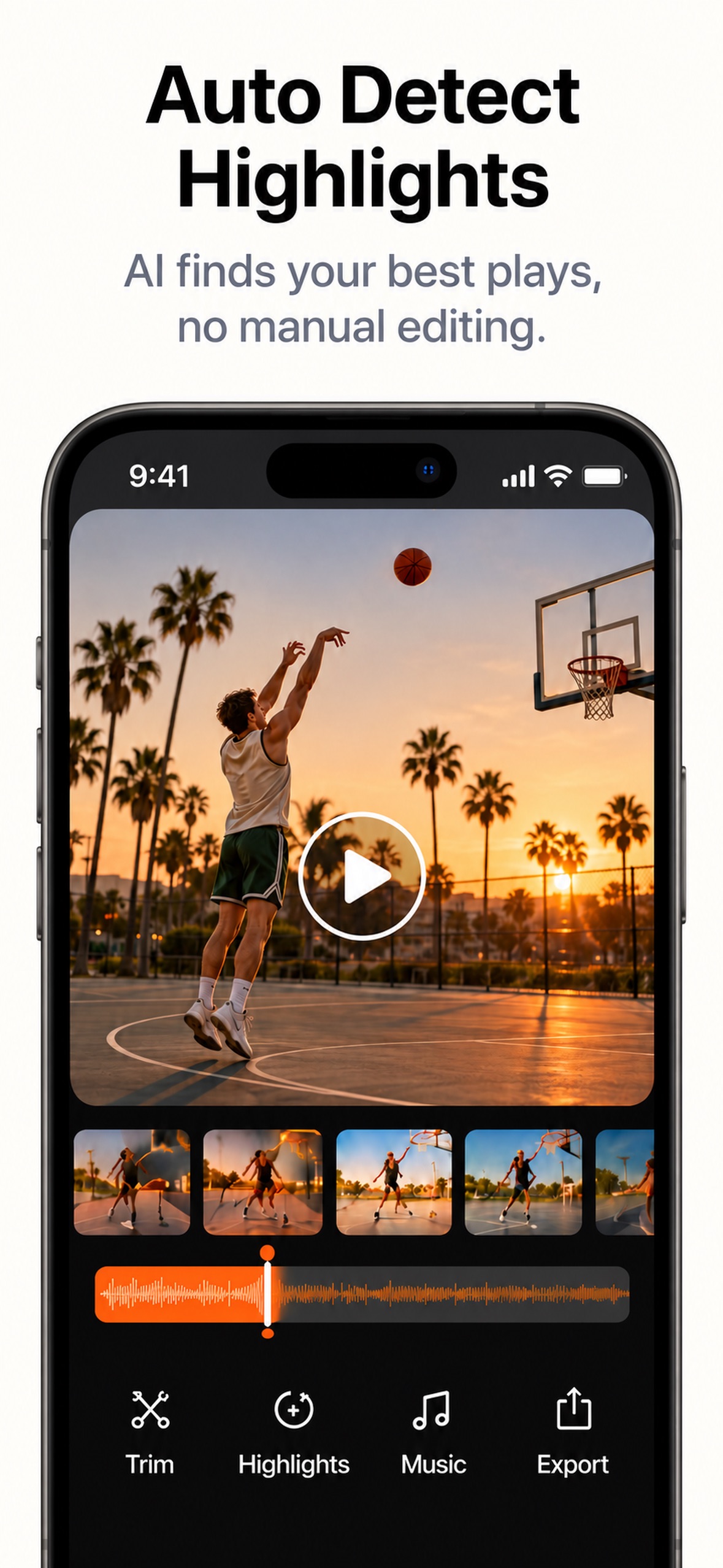
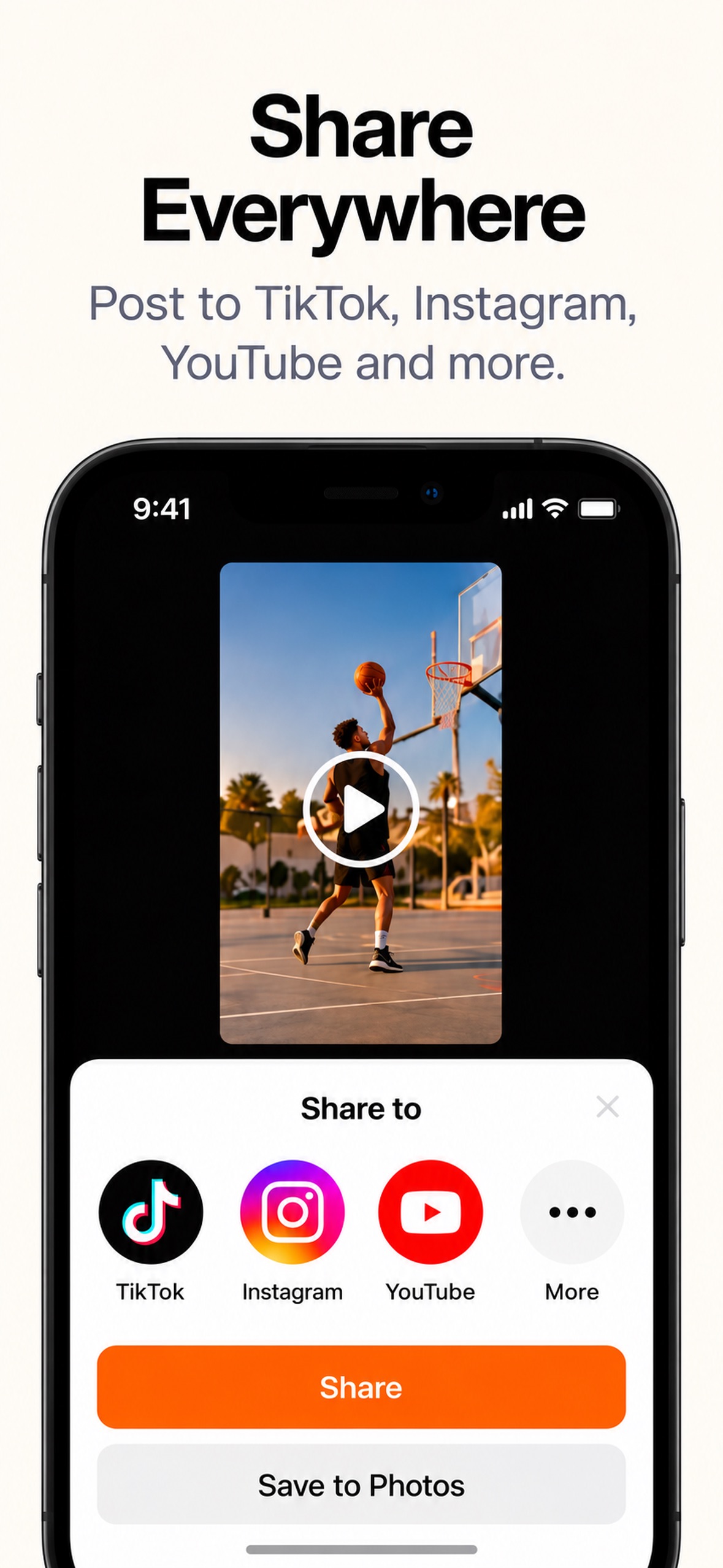
Download Hoopcut on the App Store · Select an image to see it full size.
Trim around the decision, not just the basket
For a catch-and-shoot play, begin before the catch so the viewer can see the setup. For an assist, keep the pass and the receiver’s finish together. For a defensive clip, show the initial position and the recovery. Watch the cut once without labels: can a new viewer understand the contribution? If not, try more source context before adding text. Remove a repeated basket before sacrificing the beginning of a more informative possession.
Arrange a small first cut with a clear ending
For a practice social edit, begin with four to six distinct clips; that is an editing exercise, not an app limit or a recruiting rule. Open with a clear, representative play and give the next clip a different job. Keep source order when recapping a specific run. End deliberately on a visible result or a team reaction. Review without music first so the sequence has to carry its own story. Use a storyboard to decide what each clip adds.
Put this into practice: Map the opening, middle and ending in a reel storyboard.
Choose whether Shot Tracer helps this version
A trajectory effect can make a shot’s flight easier to follow, but the line should not cover the ball, hand or rim. Compare the effect with the original play and check the release, flight and finish. For a coach’s evaluation, retain a clean copy. Titles, music and other finishing choices depend on the editor you use; the general workflow here does not establish that every finishing control is present in Hoopcut.
Put this into practice: Review basketball Shot Tracer alignment.
Reopen the export on the viewing device
Play the actual exported file outside the editor. Check the opening frame, every transition and the final frame. Look at the player and ball on a phone, not only on a large editing display. A vertical crop may remove an off-ball teammate or the top of a shot; reframe or keep a wider version when that context matters. Keep the original recording and a clean master, rather than making later edits from a compressed social upload.
Practice with the prepared ten-shot sample
The browser clipping demo uses an existing 52-second reel with ten numbered shots. Choose a marker, preview that play, then select three clips and use “Play selected clips.” The selection plays in source order. Use the table below to locate the same moments and note the context you would want in your own footage. The sample is already edited and includes shot trails; selecting clips in this demo does not run AI on an uploaded game or demonstrate the app’s processing speed.
Put this into practice: Select and preview shots in the clipping demo.
Next steps for your basketball footage
Before you export
- The audience and purpose are clear.
- The player is identifiable before each key action.
- Each selection adds a different moment and keeps its setup and visible outcome.
- The exported file plays correctly on the intended device.
- The full game and a clean master are saved for later revisions.
Practice clip log: real boundaries in the prepared sample
| Sample segment | What to review before keeping it |
|---|---|
| Shot 01 · 00:00.00–00:04.27 | Can you identify the shooter before the finish? These are sample-reel times, not source-game timestamps. |
| Shot 04 · 00:15.57–00:20.97 | Inspect the close-range attempt. Is there enough setup to explain what the player did? |
| Shot 10 · 00:45.47–00:52.00 | Check the final clip boundary and decide whether it gives your selection a deliberate ending. |
| Your game · add a source timestamp | Record jersey color/number, the action, the reason to keep it and any missing context. |
Practical questions
How long should a basketball highlight video be?
Match the audience and any submission instructions. Start with a small selection, then remove repeated plays. A social recap and a coach’s full-possession review are different deliverables; there is no single duration that suits both.
Can I make basketball highlights on iPhone?
Yes. Hoopcut is available on the App Store for iPhone and focuses on basketball auto clipping and Shot Tracer. Check the listing for current device requirements, pricing and availability. Review the selected plays and the exported file before sharing.
What should I include besides made shots?
Include the actions that serve your purpose: passing decisions, defensive reads, off-ball movement or team reactions. For evaluation film, choose evidence relevant to the athlete’s role and the recipient’s request.
Are these screenshots a tested app tutorial?
The two images are official App Store promotional screenshots from the version 1.0.0 listing, retrieved October 30, 2026. They illustrate the advertised editing and sharing workflow. They are not a screen-by-screen recording or a measured test.
Sources and further reading
Editorial guide by Hoopcut at SWINK AI INC. Prepared examples and illustrations are labeled. External product information is not a claim of hands-on comparative testing. Send a correction or a workflow question.